AmigaTools
A downloadable tool for Windows
***********************************************
* AmigaTools v1.0.0.x
* Coded by Docster of Megastyle
* Using Visual Studio 2026 .NET 10.0 / Windows 7.0
*
* Since I don't have time or the energy/motivation to code on this tool anymore, I'm
* releasing it as it is (included sourcecodes). I'm sure
*there are other great coders out there that can make this tool into
* something wonderful. I have made some sort of a tutorial, where you can learn
* how to use this tool.
* Be informed that the tutorials is not about how to do it he correct way, but, more
* like a guideline.
*
* The tutorials is in 5 parts.
*
* Tutorial #1 - AmigaTools Screen Setup
* Tutorial #2 - AmigaTools Gradient Editor
* Tutorial #3 - AmigaTools Sprite Editor
* Tutorial #4 - AmigaTools Bitmap Tools
* Tutorial #5 - AmigaTools BLTCon/Minterms (Blitter)
*
* Have fun! If you have question about this tool, please leave me a comment either on * docster.itch.io or wherever you find me on Discord.
*
***********************************************
AmigaTools is a program for Windows where you can work on your PC, setting up your MC68k ASM projects, using png files instead of iff files. You can do lots of things within AmigaTools. Like making sprites, setting up bobs or all the things you always wanted. Surely you will need some Amiga Hardware knowledge to understand the hardware registers that is used to setup screens, graphics, buttons, and so on. So, if you don't know nothing about the Amiga, I suggest finding some youtubes that explains things for you. If you do have some knowlegde to this program, or even want to make it better and re-release it please do. But, send me a copy.
***********************************************
* Sprite Editor
***********************************************
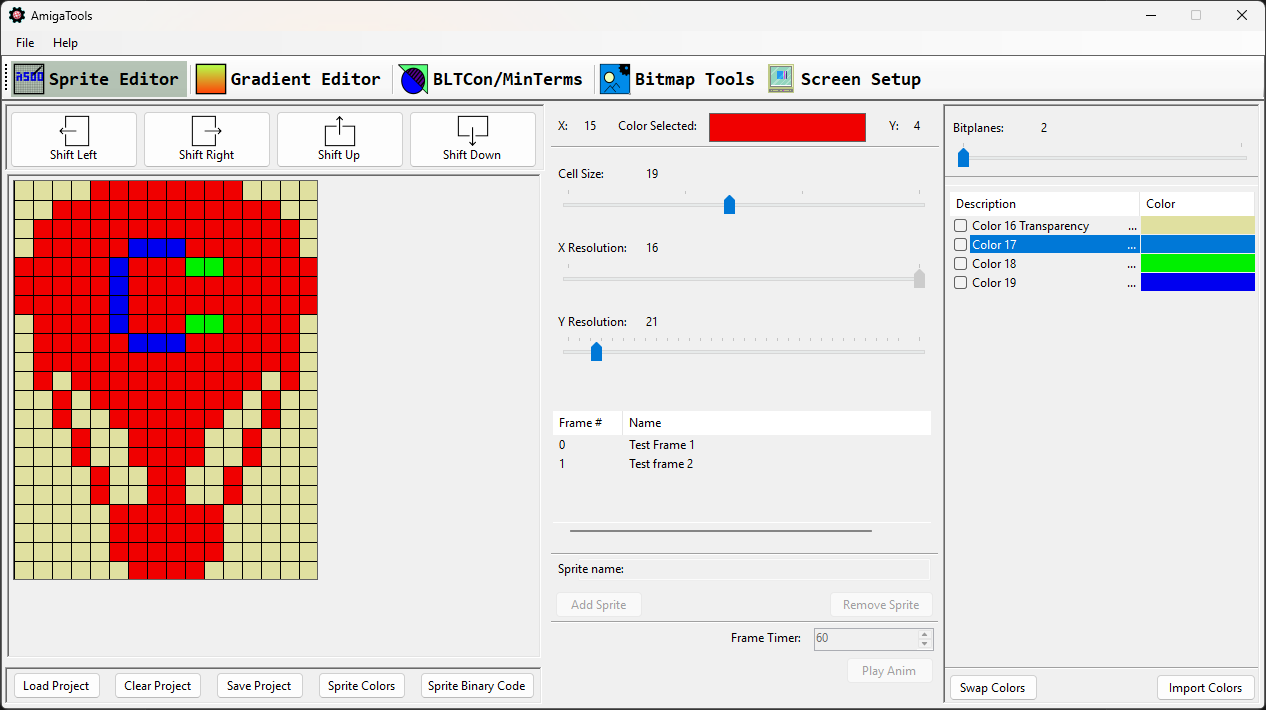
The sprite editor - Just like any other pixeling tools, AmigaTools comes with it's own Sprite Editor. In here you can zoom, shift, load and save a sprite project. You also have the possibility to generate the sourcecodes for colors and spritedata. See example Tutorials in the mc68k folder.
* Shift Left/Right/Up/Down
- As it says, these will shift the graphics to either directions.
* Load Project
- As it says, you can load a saved HTM project into the editor. AmigaTools comes with several sprite examples.
* Clear Project
- Not happy with your sprite? Well, clear it and start over again.
* Save Project
- Here you can save your Sprite Project to a file.
* Sprite Colors
- This will open up a new dialogue window, where the 68k asm code for colors will be. Either in 4 or 16 colors.
* Sprite Binary code
- Well, this is not binary data, as with Sprite Colors, AmigaTools will open up a dialogue window where the Sprite Data, so you can copy it and insert into your own 68k ASM project.
* Cell Size
- This is just a zoom factor of the graphics.
* X Resolution
- The max width of 1 sprite on the Amiga is 16 pixels. So, this will not be changeable. AmigaTools does not support multi sprites. Meaning you can only do one sprite at a time. You can of cause make a one pixel sprite if you like. Using one of the 16 pixels available.
* Y Resolution:
- This is he HEIGHT of a sprite. The max height is set to 256 pixels.
* Frames/Anims
- This feature is not implented yet
* Bitplanes
- This is where you definer either 2 or 4 bitplanes for your sprites.
* Swap Colors
- Here you can select one color and swap it with selecting two colors.
* Import Colors
- Here you can import colors from an .S/.ASM file copper project.
***********************************************
* Gradient Editor
***********************************************
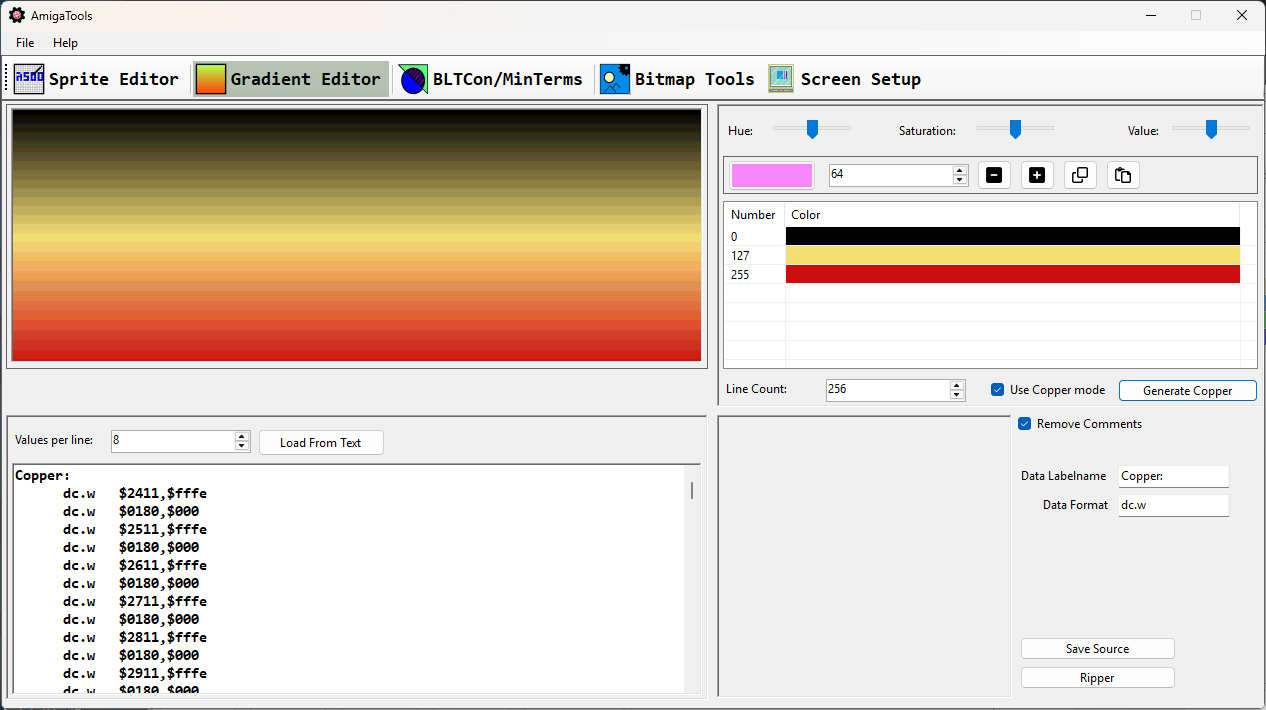
The gradient editor can be used to make some nice color copper effects, like an ocean, or a sky. A sunset. You name it!
The gradient picture will show how it would look like on a real Amiga screen. See example Tutorials in the mc68k folder.
* Values per line
- This is how many data format bytes you want the color array to be shown as.
* Load From Text
- I don't remember what this did. :P
* Hue/Saturation/Value
- This will blend the colors together, the right combo will give you some fantastic results.
* Insertion of new colors at a given line.
- Select the color by clicking in the first (white button).
- Enter the rasterline number you want to add it to. Like 64.
- Press the "+" button to add/insert it.
* Line Count
- Here you can define the MAX height of the copper/array. Changing this will change the last entry -1 to the new value.
* Use Copper Mode
- When checking this, the copper will be generated as a copper-list. And not just as an array of numbers. Press the generate Copper button to confirm the changes. Removing the checkbox will show the colors as an array instead.
* Data Labelname
- Here you can define the name of the function/label call: e.g. Copper:
* Data format
- This is just the directive the ASM language you are using for WORD. The array value will still be outputted as a WORD.
* Remove Comments
- This will just remove the comments from the generated copper output.
* Save Source
- This will save the source you have in the output window.
* Ripper
- The ripper isn't a ripper per say, it will only read each bitmap line so it can read the color value. There are several examples in the bitmap folder.
***********************************************
* BLTCon/MinTerms
***********************************************
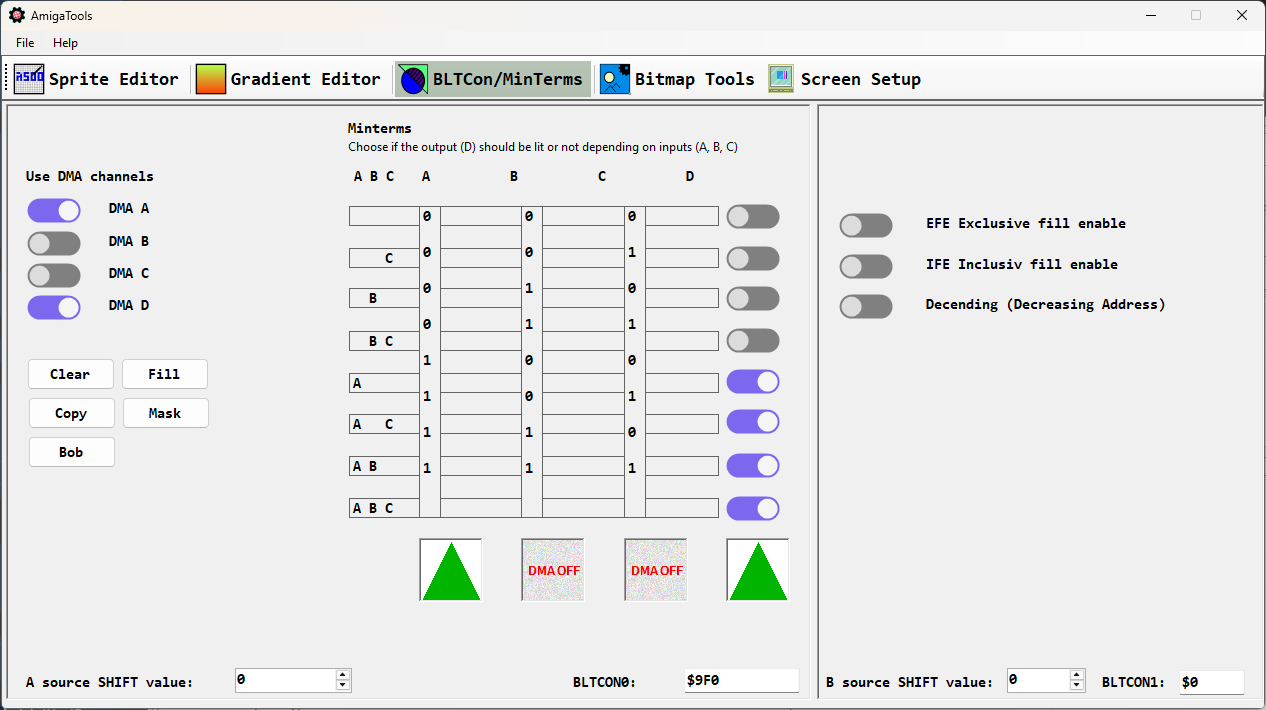
The BLTCon/MinTerms will help setting up blitting for your source codes. There are several predefined ones:
- Clear
- Fill
- Copy
- Mask
- Bob
So, what this will do is telling you what settings you use in your blitter setups, either it's clearing an area or copying something from a destination to a source. See example Tutorials in the mc68k folder.
***********************************************
* Bitmap Tools
***********************************************
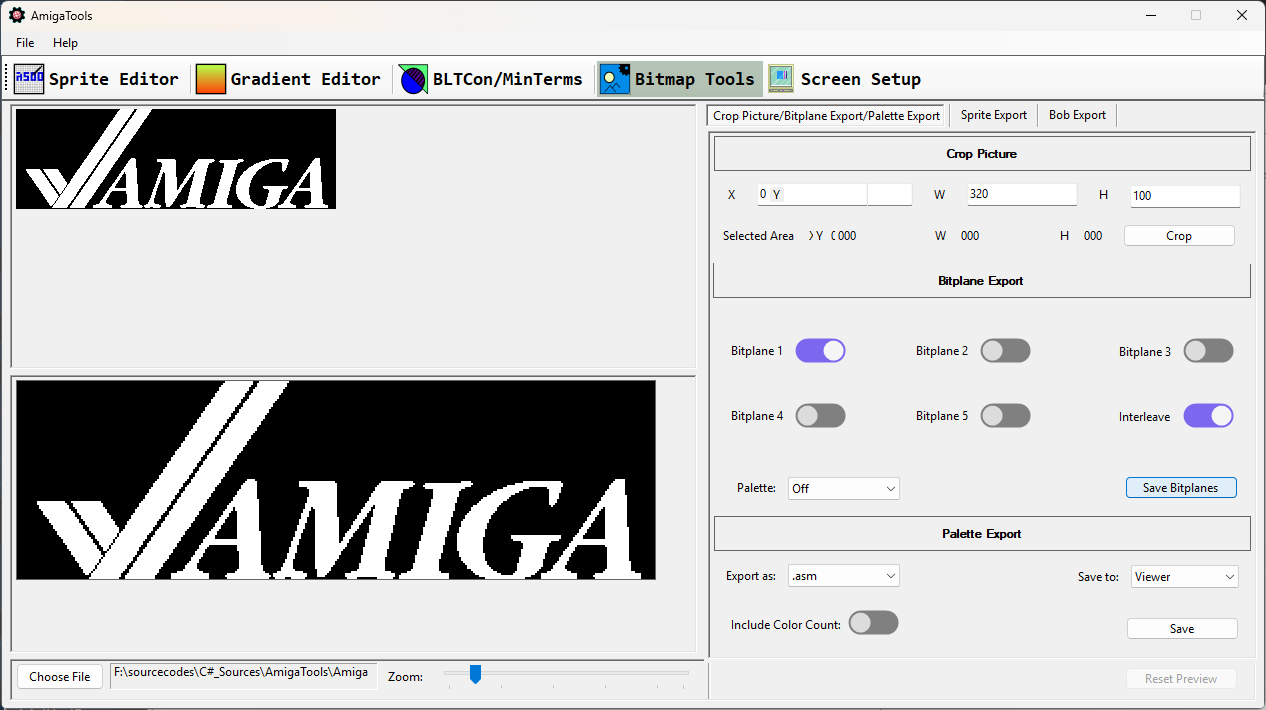
This is a bitmap editor, you can zoom, crop, save any number of bitmaps, with Interleave on or off. You can also export out the palette for the bitmap you are working on. The same goes for Sprite and Bob exports. There are still somethings that is not implented yet. And not all types of export as (or Save to:) can be used. You can also use your mouse to select areas you want to crop or save. See Tutorial examples in the mc68k folder.
***********************************************
* Screen Setup
***********************************************
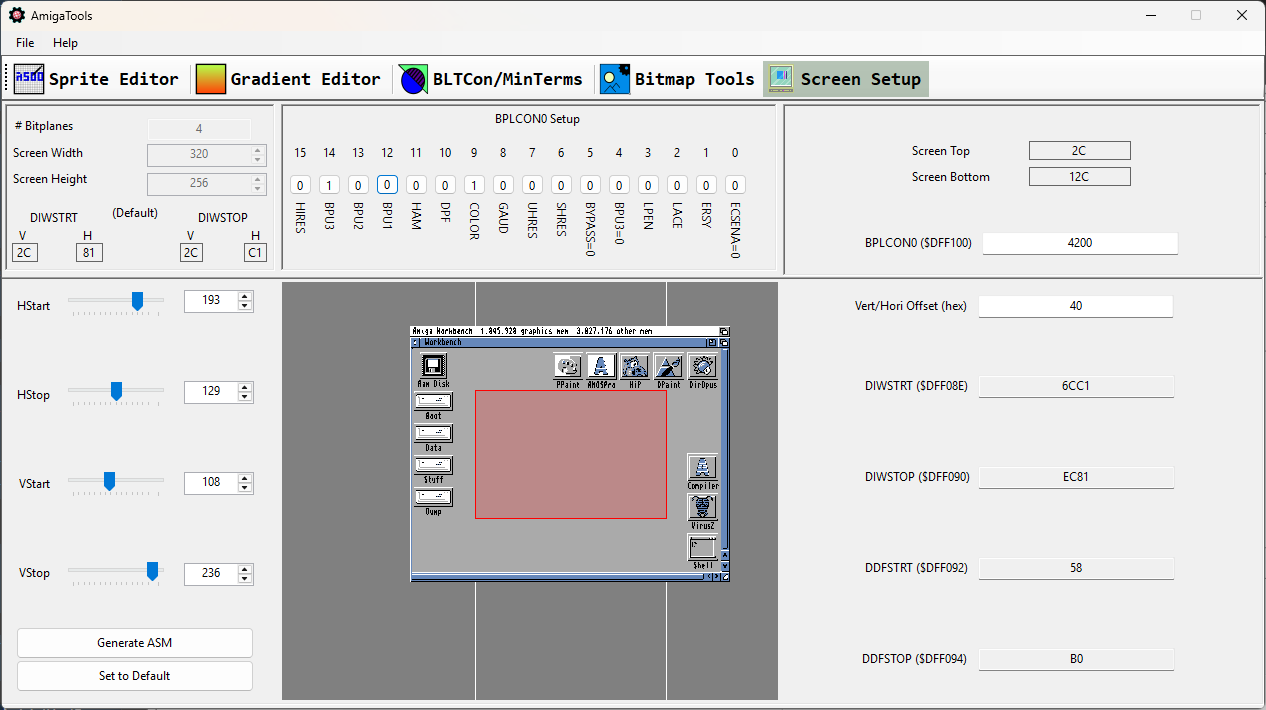
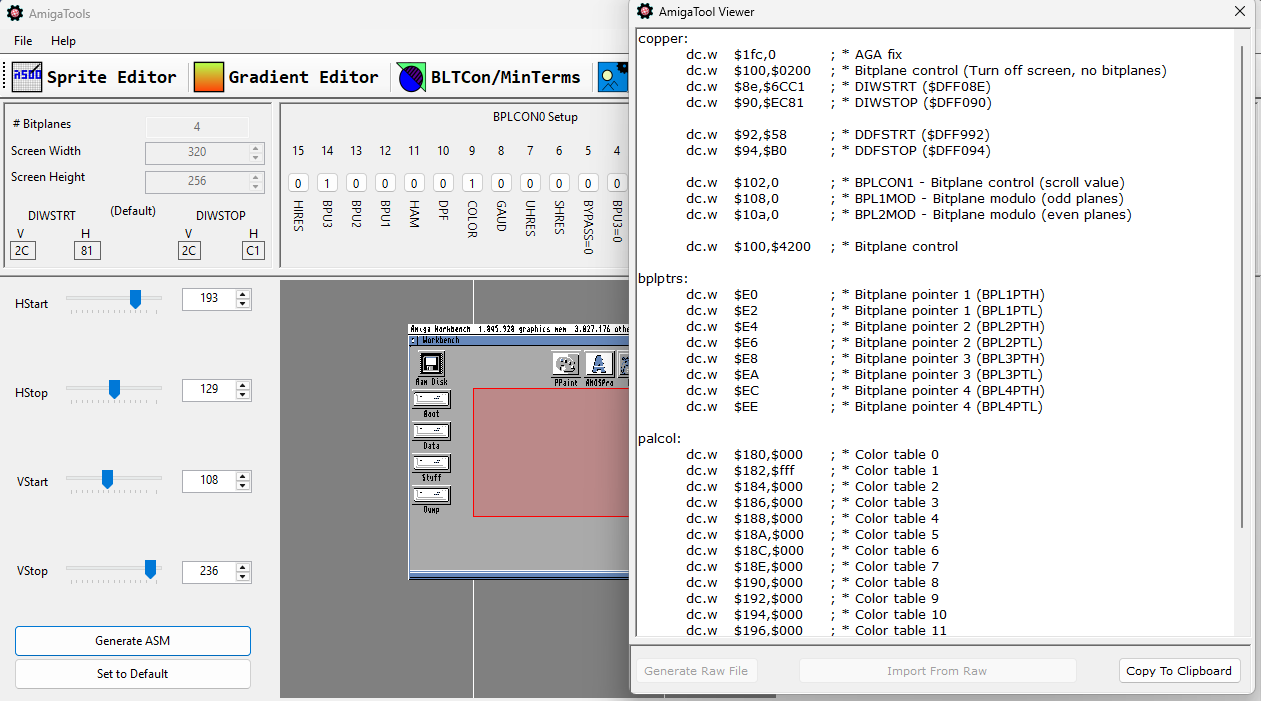
When you first start AmigaTools, the most upper left corner information is the DEFAULT settings of a 320x256x0 LoRes Resolution. This tool will help you setting up your display view. You can then save the sourcecode of your copper screen setup when you are done. See tutorials in the mc68k folder. This tool does not deal with other screen formats. It's just default setup where you can change how you would like to setup the viewport of the screen. Generate ASM will generate the source code for you in mc68k ASM.
-------- AmigaTools is released under the MIT License ---------
MIT License
Copyright (c) 2025-2026 Kåre Johansen
Permission is hereby granted, free of charge, to any person obtaining a copy of this software and associated documentation files (the "Software"), to deal in the Software without restriction, including without limitation the rights to use, copy, modify, merge, publish, distribute, sublicense, and/or sell copies of the Software, and to permit persons to whom the Software is furnished to do so, subject to the following conditions:
The above copyright notice and this permission notice shall be included in all copies or substantial portions of the Software.
THE SOFTWARE IS PROVIDED "AS IS", WITHOUT WARRANTY OF ANY KIND, EXPRESS OR IMPLIED, INCLUDING BUT NOT LIMITED TO THE WARRANTIES OF MERCHANTABILITY, FITNESS FOR A PARTICULAR PURPOSE AND NONINFRINGEMENT. IN NO EVENT SHALL THE AUTHORS OR COPYRIGHT HOLDERS BE LIABLE FOR ANY CLAIM, DAMAGES OR OTHER LIABILITY, WHETHER IN AN ACTION OF CONTRACT, TORT OR OTHERWISE, ARISING FROM, OUT OF OR IN CONNECTION WITH THE SOFTWARE OR THE USE OR OTHER DEALINGS IN THE SOFTWARE.
Download
Click download now to get access to the following files:
Comments
Log in with itch.io to leave a comment.
Hi, you have a gradient editor, but could be a copper palette change editor be added to create copperlists for games that change the copper colors often like Pang?
Hi, the Gradient Editor already works by generating color changes over the raster lines, so a copper palette effect should basically be possible using the same principle. You can also create multiple gradients/lists and chain or swap them from your own copperlist. The tool is open source, so extending the output to generate a copperlist format suitable for your game should be possible.
Hi Docster, thanks for making these tools available and including the source code. What license is the source code released with? Are we free to do whatever we want with it?
Hi Dirk, you are very welcome. I forgot to add this info in the description, but now I have. Thanks for the reminder. AmigaTools is released under the MIT License. :)